Assets and QR labels
Know every piece of equipment you look after
Fridges and coolrooms, air conditioning, beer lines, gaming machines and kitchen equipment, in one register: where it is, when it was serviced, what it has cost and the documents that go with it.
What you get
One register
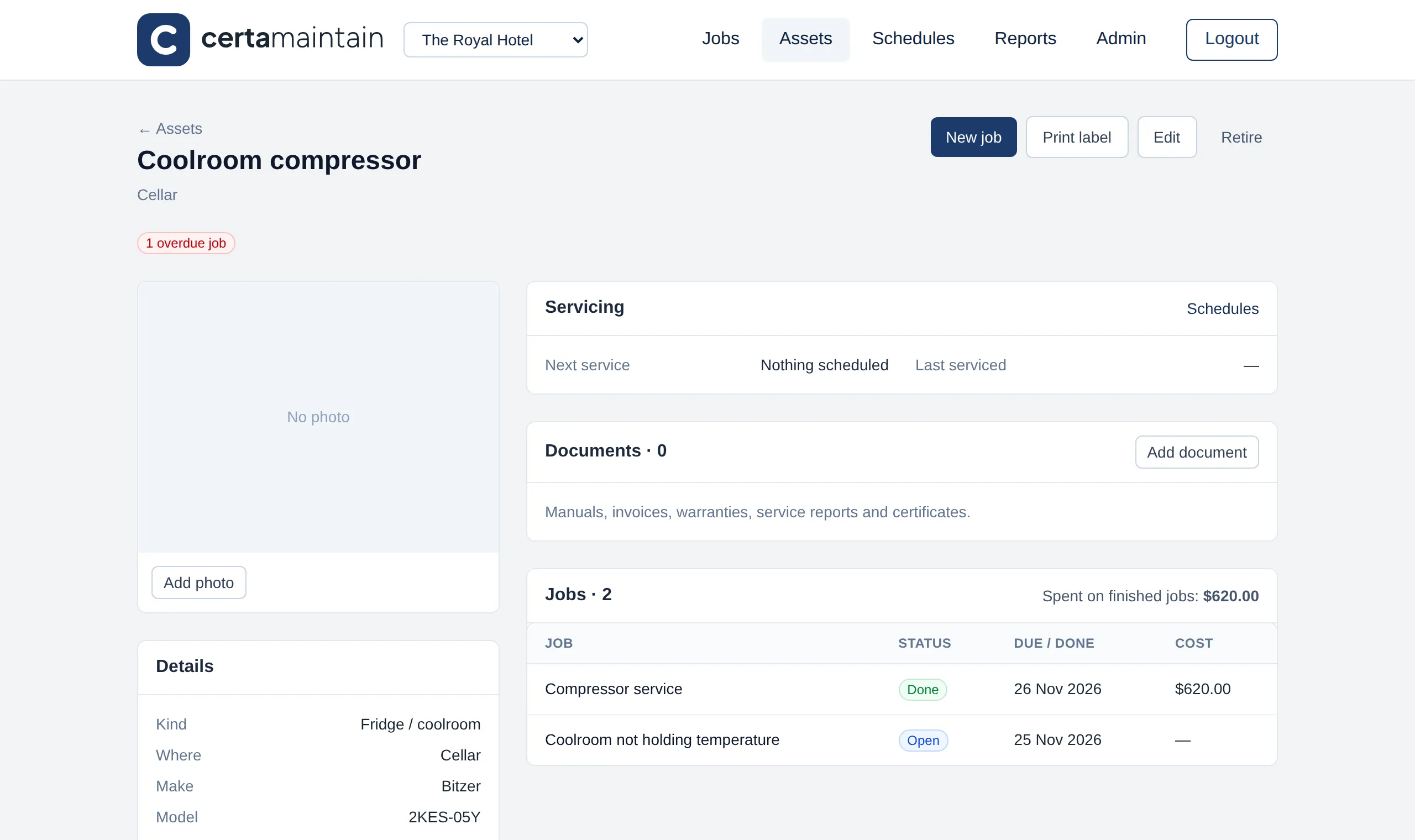
Name, kind, location, make, model, serial number, purchase date and warranty, with a photo.
QR labels
Print labels on standard A4 sheets. Scanning one opens the asset on the phone, ready to report a fault.
Documents kept together
Manuals, invoices, warranties, service reports and certificates, kept with the asset.
Needs attention
Services and inspections that are due, and warranties or documents about to expire, flagged 30 days ahead.
Cost of ownership
Every job on the asset and what it cost, so you can see what to repair and what to replace.
Import a spreadsheet
Already have a list? Import it as a CSV file, with a preview before anything is added.
How it works
- Go to Assets and choose Add asset, or Import your spreadsheet.
- Tick Compliance asset for equipment that needs regular inspections, and how many months apart they are.
- Choose Print labels and stick each QR label on its equipment.
- Staff scan a label to see the asset and report a fault against it.
Step-by-step details are in the knowledgebase.
Common questions
What labels do I need?
Standard A4 sheets of 3 × 7 labels (such as Avery L7160 or J8160). Plain paper works too.
Do staff need anything special to scan a label?
No. The phone’s own camera opens the label’s link, which shows the asset in the CertaMaintain phone app.
Can I add my own kinds of equipment?
Yes. Admins can add the venue’s own kinds of asset in Admin → Settings.
Do I have to use the asset register?
No. If you only want jobs and schedules, an admin can turn Assets off. Nothing is deleted, and it can be turned back on at any time.
More features
See CertaMaintain at your venue
Start a free 30-day trial. No setup fees and no credit card.